How to Install Clawdbot on Digital Ocean: The Complete 2026 Guide
Deploy your own AI assistant that lives in WhatsApp, Telegram, and Discord. A step-by-step guide to running Clawdbot on Digital Ocean for about $30/month.
How to Install Clawdbot on Digital Ocean: The Complete 2026 Guide
Deploy your own AI assistant that lives in WhatsApp, Telegram, and Discord
What if your AI assistant didn't live on a website you had to visit? What if it lived in the messaging apps you already use—responding on WhatsApp, handling requests via Telegram, managing tasks through Discord?
That's Clawdbot. And running it on your own Digital Ocean server costs about $30/month while giving you capabilities cloud AI services can't match: true conversation persistence, proactive messaging (it can reach out to you), and unlimited automation potential.
I synthesized a dozen guides, official docs, and community resources to create this complete walkthrough. Here's exactly how to get Clawdbot running on Digital Ocean.
What Makes Clawdbot Different
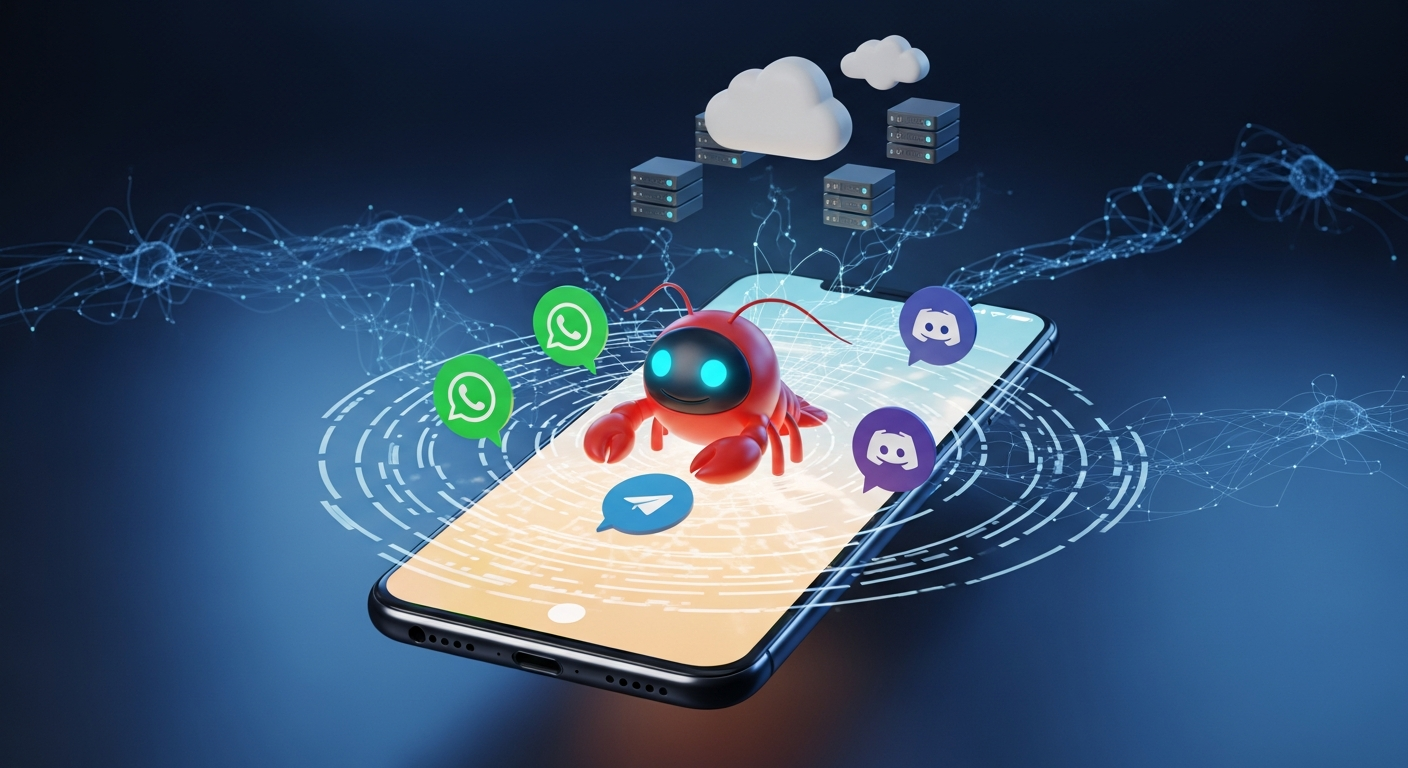
Unlike ChatGPT or Claude's web interface, Clawdbot lives inside your existing communication channels. You don't open a new app or website—you just message it wherever you already are.
The implications are significant:
Persistent Memory: Tell it about a meeting on Friday. Ask about your schedule next week. It remembers. Cloud AI sessions forget everything the moment you close the tab.
Proactive Outreach: "Every morning at 7am, summarize my unread emails and today's calendar." Clawdbot can message you with briefings, alerts, and reminders. No other AI assistant does this.
Full Automation Access: Clawdbot has shell access to your server. Anything you can script, it can execute—web browsing, form filling, email sending, file management.
The trade-off? You're responsible for security. The documentation is refreshingly candid: "Perfect security is impossible when running frontier AI models with shell access." More on mitigations later.
What You'll Need
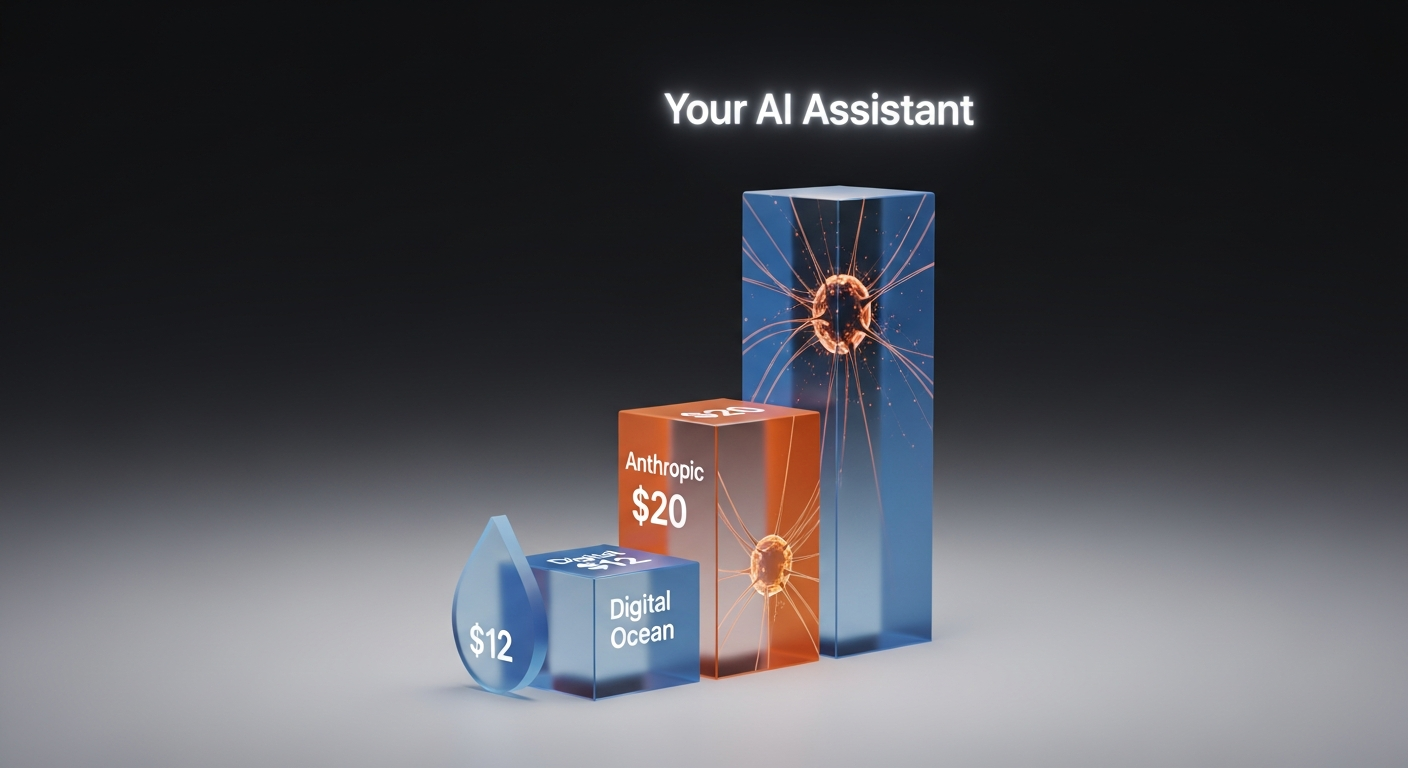
Infrastructure (~$12/month):
- Digital Ocean account
- 2GB RAM Droplet with Ubuntu 24.04 LTS
AI Access (~$20/month):
- Anthropic API key from console.anthropic.com
- Or Claude Pro subscription for heavier usage
Messaging Platform:
- Telegram bot token (easiest to start)
- Or Discord application
- Or WhatsApp (with caveats—see below)
Time: About 30 minutes for initial setup.
Step 1: Create Your Digital Ocean Droplet
Log into Digital Ocean and create a new Droplet:
- Image: Ubuntu 24.04 LTS
- Size: Basic, 2GB RAM / 1 AMD CPU / 50GB SSD ($12/month)
- Region: Nearest datacenter to your location
- Authentication: SSH key (recommended) or password
Why 2GB RAM? The 1GB tier technically works after installation, but npm package installation frequently triggers out-of-memory errors. The community consensus: 2GB provides reliable installation without intervention. You can resize down afterward if needed, but the $6/month savings rarely justifies the hassle.
Step 2: Initial Server Setup
SSH into your new server:
ssh root@YOUR_DROPLET_IP
Create a dedicated user (security best practice):
adduser clawd
usermod -aG sudo clawd
su - clawd
Running as root works, but isolating Clawdbot to its own user limits potential damage from misconfigurations.
Step 3: Install Clawdbot
The one-line installer handles Node.js, pnpm, and the Clawdbot CLI:
curl -fsSL https://clawd.bot/install.sh | bash
exec bash  # Reload shell for new PATH
Verify installation:
clawdbot --version
You should see version output like clawdbot v2026.1.x.
Step 4: Run the Onboarding Wizard
This is where the magic happens:
clawdbot onboard --install-daemon
The wizard walks you through:
- Security acknowledgment—confirming you understand shell access implications
- Gateway type—select "local" for server installations
- AI provider—enter your Anthropic API key
- Channels—select which messaging platforms to enable
- Daemon installation—creates systemd service for auto-restart
The --install-daemon flag is important: it ensures Clawdbot restarts automatically after server reboots or crashes.
Step 5: Verify the Gateway
Check that the service is running:
clawdbot gateway status
You should see status information showing the gateway is active. If not:
clawdbot gateway --port 18789 --verbose
This runs the gateway in foreground mode so you can see any errors.
Step 6: Secure Dashboard Access
Critical: Never expose port 18789 to the internet. The dashboard has powerful capabilities—keeping it behind SSH is essential.
On your local machine (not the server), create an SSH tunnel:
ssh -L 18789:127.0.0.1:18789 clawd@YOUR_DROPLET_IP
Now open http://127.0.0.1:18789 in your local browser. The dashboard will prompt for a token—find it in your server's ~/.clawdbot/clawdbot.json under gateway.auth.token.

Step 7: Connect Your First Channel
Telegram (Recommended for First Setup):
- Message @BotFather on Telegram
- Send
/newbotand follow the prompts - Copy the bot token
- In Clawdbot:
clawdbot channels add --channel telegram --token "YOUR_TOKEN"
Discord:
- Go to Discord Developer Portal
- Create new application → Bot section → Generate token
- OAuth2 → URL Generator → Select 'bot' scope → Invite to server
- In Clawdbot:
clawdbot channels add --channel discord --token "YOUR_TOKEN"
WhatsApp (Use Carefully):
clawdbot channels login
Scan the QR code in WhatsApp → Settings → Linked Devices.
Warning: WhatsApp doesn't have a "bot" concept. This links your actual WhatsApp account. Every message to that number becomes AI input. I recommend a dedicated phone number or eSIM specifically for Clawdbot.
Step 8: Approve Your First Pairing
Message your bot from your preferred platform. You'll receive a 6-digit pairing code. Approve it:
clawdbot pairing approve telegram 123456
This adds your account to the allowlist. Unknown senders are blocked by default—a simple but effective security layer.
Security Configuration
The documentation is candid: self-hosting AI with shell access carries inherent risk. Here's the mitigation stack:
Pairing Codes: Unknown senders can't interact without approval. No complex identity management needed.
Token Authentication: Dashboard access requires the generated token, even over localhost.
SSH Tunneling: Gateway never exposed to internet. All dashboard access through encrypted tunnel.
Tailscale (Alternative): If you use Tailscale, you can configure the gateway to accept Tailscale connections instead of manual SSH tunnels. Simpler for daily use.
Docker Sandboxing: For group chats or multi-user scenarios, enable sandboxing to isolate tool execution:
{
  "agents": {
    "defaults": {
      "sandbox": {
        "mode": "non-main"
      }
    }
  }
}
Troubleshooting Common Issues
Gateway won't start: Run clawdbot doctor for automated diagnostics and fixes.
Out of memory during install: Ensure you're on 2GB RAM. If stuck on 1GB, add swap:
sudo fallocate -l 2G /swapfile
sudo chmod 600 /swapfile
sudo mkswap /swapfile
sudo swapon /swapfile
WhatsApp QR code expires: The QR has a short timeout. Have WhatsApp open and ready before running channels login.
Messages not processing: Check pairing status—new senders need approval.
The universal debugging sequence:
clawdbot status
clawdbot gateway status
clawdbot logs --follow
clawdbot doctor
Cost Breakdown
My first month running Clawdbot on Digital Ocean:
| Item | Cost |
|---|---|
| 2GB Droplet | $12 |
| Anthropic API usage | $18 |
| Brave Search API (optional) | $0 |
| Total | $30 |
For budget optimization:
- Hetzner VPS: ~$5/month instead of $12
- 1GB Droplet after installation: saves $6/month
- API-only (no Pro subscription): variable based on usage
Minimum viable monthly cost: approximately $15.
What Can You Actually Do With This?
Once running, Clawdbot becomes genuinely useful:
Daily Briefings: "Every morning at 7am, summarize my unread emails, today's calendar, and weather."
Research Assistant: "Find the top 5 articles about [topic] published this week and summarize the key points."
Automation: "When I send you a receipt image, extract the total and add it to my expense spreadsheet."
Memory-Enhanced Tasks: "Remember that I'm meeting John at 3pm on Friday. Remind me Thursday evening."
One user in the research "burned through 180 million tokens in his first week" replacing paid Zapier subscriptions with natural conversation automation.

Takeaways
Running Clawdbot on Digital Ocean transforms abstract "AI assistant" concepts into tangible utility. The setup has matured—what once required deep expertise now takes 30 minutes with the onboarding wizard.
Key decisions:
- 2GB Droplet provides installation safety margin
- SSH tunnel for all dashboard access
- Start with Telegram before attempting WhatsApp
- Enable pairing codes and token auth
The monthly cost (~$30) is comparable to premium AI subscriptions, but you get capabilities they can't offer: proactive messaging, true persistence, and unlimited automation.
Sources: Official Clawdbot Documentation, GitHub Repository, Digital Ocean Setup Gist, Collabnix Architecture Analysis
Written by
Global Builders Club
Global Builders Club
If you found this content valuable, consider donating with crypto.
Suggested Donation: $5-15
Donation Wallet:
0xEc8d88...6EBdF8Accepts:
Supported Chains:
Your support helps Global Builders Club continue creating valuable content and events for the community.