The OpenClaw Dashboard: A Complete Guide to Running Your AI Command Center
Everything you need to know about the Control UI, cron jobs, file management, and business automation. What if your AI assistant could manage your email, run your calendar, and handle deployments while you sleep?
Everything you need to know about the Control UI, cron jobs, file management, and business automation.
What if your AI assistant could manage your email, run your calendar, and handle deployments while you sleep? That's not science fiction—it's what OpenClaw's dashboard enables today.
I've spent the week diving deep into OpenClaw's Control UI, and I'm convinced it represents a fundamental shift in how we interact with AI. This isn't a chatbot. It's a command center.
The Dashboard: Your Mission Control
When you navigate to http://127.0.0.1:18789/, you're greeted by the Control UI—a sleek single-page app that puts your entire AI infrastructure at your fingertips.
What you can do from the dashboard:
- Chat with your AI in real-time with live tool output
- Manage scheduled automation (cron jobs)
- Edit configuration with validation
- Control connected channels (WhatsApp, Telegram, Discord, Slack)
- View session history and switch contexts
- Install and manage skills
The chat interface isn't just text-in, text-out. You see tool execution in real-time—file reads, web searches, code execution—all visualized as expandable cards. When your AI is working, you can watch exactly what it's doing.
Cron Jobs: The Automation Engine
The cron system transforms OpenClaw from a reactive assistant to a proactive partner. Here's how it works:
Three Ways to Schedule
One-shot (at):
openclaw cron add --name "Meeting prep" --at "2026-02-02T14:00:00Z" \
  --session main --system-event "Prepare for 3pm meeting" \
  --wake now --delete-after-run
Interval (every):
openclaw cron add --name "Health check" --every "15m" \
  --session isolated --message "Check server status"
Cron expression:
openclaw cron add --name "Morning brief" --cron "0 7 * * *" \
  --tz "America/Los_Angeles" --session isolated \
  --message "Summarize my calendar and top emails" \
  --deliver --channel whatsapp
Main vs. Isolated Sessions
Main session jobs integrate with your ongoing conversation. They see context from previous messages. Use these for reminders that should feel like part of your normal interaction.
Isolated session jobs start fresh every time. No accumulated context. No token bloat. Perfect for scheduled tasks that should be independent.

The Workspace: File-Based Intelligence
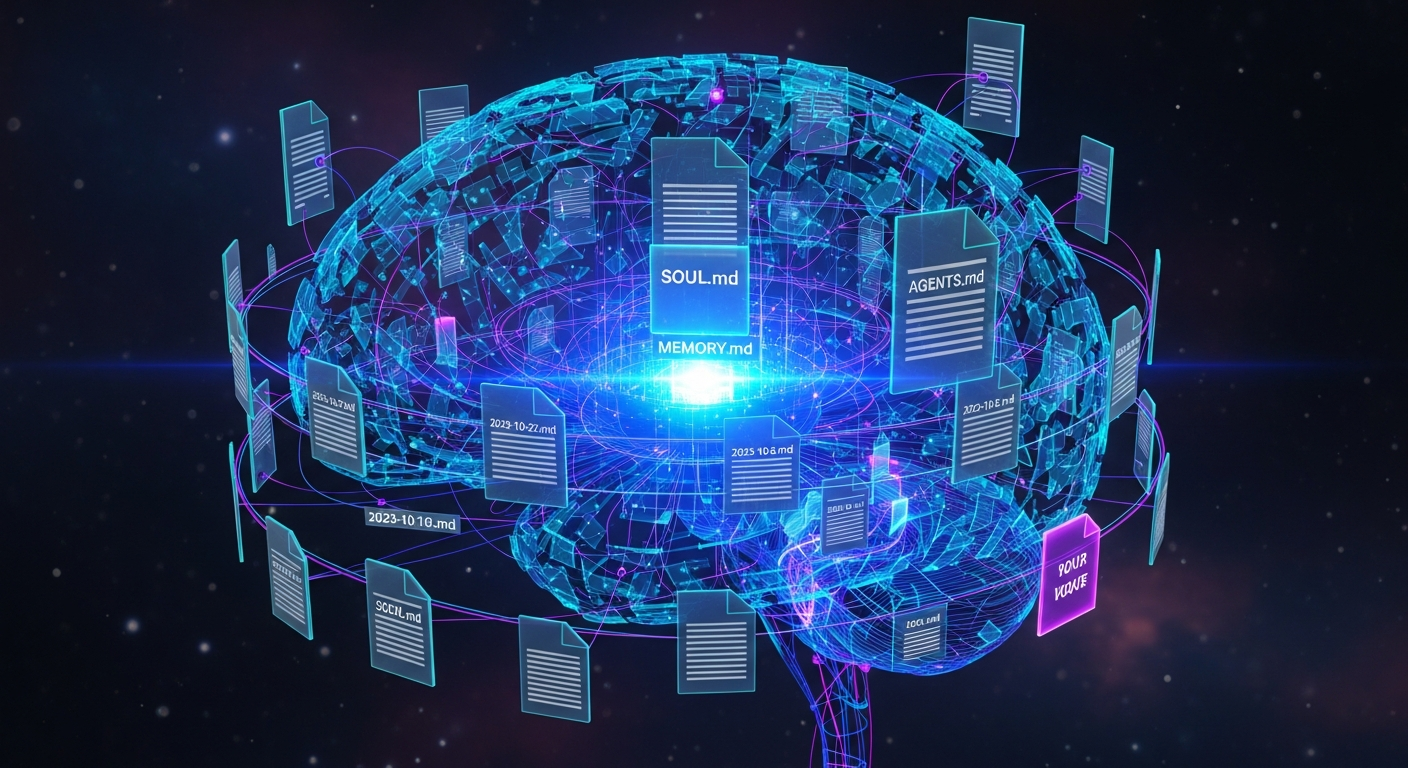
Your agent's brain lives in ~/.openclaw/workspace/. This isn't just storage—it's the foundation of persistent intelligence.
The Essential Files
| File | Purpose |
|---|---|
AGENTS.md |
Operating instructions |
SOUL.md |
Personality and boundaries |
USER.md |
Your identity and preferences |
TOOLS.md |
Local tool documentation |
MEMORY.md |
Long-term knowledge |
memory/YYYY-MM-DD.md |
Daily logs |
Why This Matters
Traditional chatbots reset with every conversation. OpenClaw accumulates intelligence. Every day adds to the daily log. Important facts migrate to MEMORY.md. Over time, your agent knows you better than any generic AI ever could.
Pro tip: Git-back your workspace. Version control your agent's memory. When something goes wrong, you can roll back. When something works great, you can see exactly what changed.
Running Your Business on OpenClaw
This isn't theoretical. Real users are running real workflows:
Email Automation
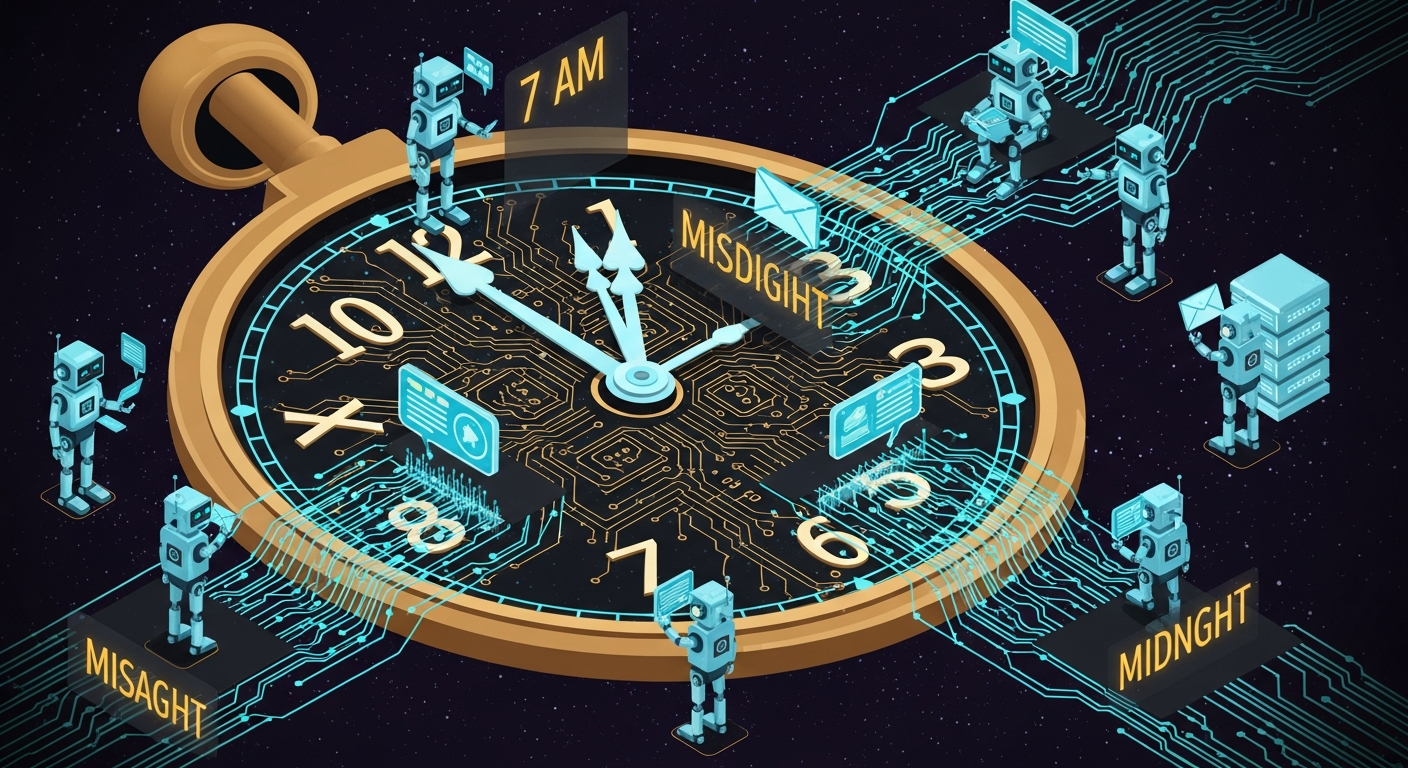
One user reported clearing 6,000 emails on the first day. OpenClaw triages, categorizes, drafts replies, and surfaces what matters.
openclaw cron add --name "Email digest" --cron "0 8 * * *" \
  --session isolated \
  --message "Triage my inbox. Unsubscribe from obvious spam. Draft replies to urgent items. Send me a summary." \
  --deliver --channel telegram
Calendar Management
Natural language scheduling. Conflict detection. Morning briefings. Meeting prep reminders.
DevOps Automation
GitHub integration. Deployment scheduling. Log monitoring. Alert routing.
openclaw cron add --name "Deploy staging" --cron "0 2 * * *" \
  --session isolated \
  --message "Pull latest from main, run tests, deploy to staging. Alert me if failures." \
  --deliver --channel slack --to "channel:C_engineering"
Secrets Management: Keeping Your Keys Safe
OpenClaw handles sensitive data carefully, but you need to configure it properly.
Environment Variables
Set these in your shell, not your config file:
OPENCLAW_GATEWAY_PASSWORD- Gateway authenticationOPENCLAW_STATE_DIR- Custom state locationOPENCLAW_DISABLE_BONJOUR- Disable network discovery
Credential Storage
Sensitive files live in ~/.openclaw/credentials/ with 600 permissions:
- WhatsApp credentials
- Telegram tokens
- Auth profiles per agent
Log Redaction
Enable by default: logging.redactSensitive: 'tools'
Add custom patterns for your environment:
{
  "logging": {
    "redactPatterns": [
      "sk-[a-zA-Z0-9]+",
      "ghp_[a-zA-Z0-9]+",
      "your-internal-domain\\.com"
    ]
  }
}
Security: The Non-Negotiable Foundation
Cisco researchers found that 26% of community-created skills contain vulnerabilities. This isn't a reason to avoid OpenClaw—it's a reason to configure it properly.
The Security Audit Ritual
Run this weekly:
openclaw security audit --deep --fix
This checks:
- Inbound access policies
- Tool blast radius
- Network exposure
- File permissions
- Plugin configurations
The Access Control Hierarchy
- Identity first: Who can message your bot? Use pairing codes, not open access.
- Scope next: What can they ask it to do? Use tool policies and group allowlists.
- Model last: Assume the model can be manipulated. Design for limited blast radius.
Getting Started: Your First Week
Day 1: Local Setup
- Install OpenClaw
- Run
openclaw onboard --install-daemon - Open
http://127.0.0.1:18789/and chat
Day 2: First Cron Job
openclaw cron add --name "Morning brief" --cron "0 7 * * *" \
  --session isolated \
  --message "What's on my calendar today?" \
  --deliver --channel last
Day 3: Connect a Channel
- Add WhatsApp or Telegram
- Test DM pairing
- Chat from your phone
Day 4: Customize Your Agent
- Edit
SOUL.mdfor personality - Add preferences to
USER.md - Document tools in
TOOLS.md
Day 5: Security Hardening
- Run
openclaw security audit --deep - Enable sandboxing
- Review tool permissions
Day 6-7: Expand
- Add email skill
- Create monitoring cron jobs
- Explore the skill registry
The Bottom Line
The OpenClaw dashboard isn't just a chat interface—it's a complete platform for AI-powered business automation. With cron jobs for scheduling, workspace for memory, channels for delivery, and proper security configuration, you can build workflows that run continuously without constant attention.
The key insight: start simple, expand methodically, and audit regularly. One morning briefing cron job is more valuable than a dozen half-configured features.
The personal AI command center isn't coming. It's here. Open your browser and claim it.
Ready to dive deeper? Check out the OpenClaw documentation and join the community at github.com/openclaw/openclaw.
Written by
Global Builders Club
Global Builders Club
If you found this content valuable, consider donating with crypto.
Suggested Donation: $5-15
Donation Wallet:
0xEc8d88...6EBdF8Accepts:
Supported Chains:
Your support helps Global Builders Club continue creating valuable content and events for the community.